
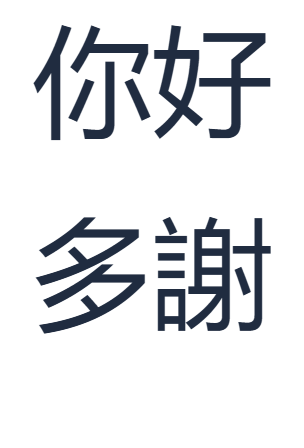

A short phrase makes a useful first typing exercise: you can check every character before moving on. Here we create two lines, 你好 and 多謝, then save the actual result shown above. The same routine works when you return with a longer message.
Open the Cantonese keyboard
Open the Cantonese keyboard. Check that Select Input Method shows Cantonese. If your device is already converting your keystrokes with another input method, switch it to ordinary English letter input while using this page.
Jyutping represents Cantonese pronunciation with letters and tone numbers. Its six tone numbers go after the syllable, as described in the Jyutping scheme. In our first example, read nei5hou2 as nei5 followed by hou2. You do not need to install a new keyboard or create an account.
Use the small Input code box for Jyutping. The large editor holds the Chinese text you have already chosen.
Write your first greeting
Type nei5hou2 in Input code. Wait for the candidate buttons, then choose exactly 你好. The phrase moves into the editor and the input code clears. This is the greeting “hello.”
Check the whole candidate before selecting it. The list can also contain longer expressions beginning with the same characters. A matching start does not mean the entire phrase is the one you intended.
Clicking the candidate is the simplest first attempt. With the caret at the end of the code, you can also press Space to choose the first candidate, or Alt + its displayed number to choose a numbered option. Use the previous and next controls when your result is on another page.
The ordinary 5 and 2 keys belong to the pronunciation code. They do not select candidates. Keep the tone digits and the Alt selection shortcut separate.
Add a second useful phrase
Click at the end of 你好 in the large editor and press Enter to start a new line. Return to Input code, type do1ze6, and select exactly 多謝. This is an expression of thanks. Our two lines are separate practice phrases, rather than one sentence.
Now compare the editor with the result above: the first line should contain two characters, 你好, and the second should contain 多謝. If you selected a longer phrase, use Undo, enter the code again, and choose the shorter candidate.
Keep this exercise small. Choosing one known phrase at a time gives you a clear point at which to check your work. When you want more examples, the everyday Cantonese phrases page provides a useful next step.
Review and keep your result
Use Copy text to paste both lines into a message or notes app. The toolbar buttons have tooltips, so you can identify each icon before using it. Copy and the two save actions use the complete editor contents.
The PNG preserves the visual result; its characters are pixels. Keep a text copy too if you plan to edit the phrases later.
Common questions
Can I leave out the tone numbers?
The keyboard also accepts tone-free codes such as neihou. Use the numbered form in this exercise to connect each syllable with its tone. Always inspect the candidate before inserting it.
Can I use Mandarin Pinyin here?
Use Cantonese Jyutping for this keyboard. Mandarin nihao belongs in the separate Pinyin keyboard; it is not the Cantonese spelling of this greeting.
Why did Enter not choose the first candidate?
Enter inserts a line break. For Cantonese candidate selection, click the result, use Alt with its displayed number, or press Space with the caret at the end of the code.
Does my PNG include the Jyutping code?
No. Save image exports the large editor. The code is a lookup step, so this example's PNG contains only the two chosen Chinese phrases. Use Cantonese reading sheets when you want a study layout with readings.
Write your first two phrases.
Start with nei5hou2, then add do1ze6.