
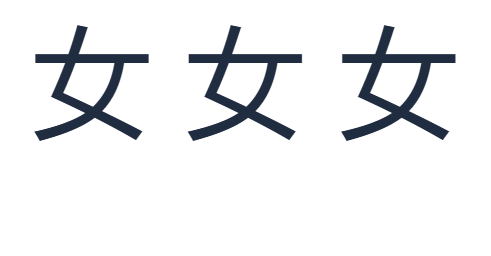

A standard Latin keyboard usually makes v easier to enter than ü. In the i2Bopomo Pinyin keyboard, it also provides a reliable way to look up syllables containing ü. We will enter three equivalent codes, select 女 each time, and compare the saved result.
Use v when you need ü
Open the Pinyin keyboard and type nv in Input code, the small box below the editor. The large editor is where selected Chinese text appears.
The keyboard treats v as the ü part of this lookup. Wait for the candidates and choose 女. Our verified lookup showed it first, followed by longer words beginning with the same sound. Read the candidate you want rather than assuming that every result is the single character.
Typing nv in the input box looks up Chinese characters. It does not put the letters nü into your finished text.
Compare the three supported spellings
The following inputs offered the same first candidates in our test:
To reproduce the image, choose 女 from nv, add a space in the large editor, then repeat with nü and nu:. The result is 女 女 女. The spaces simply separate the three trials.
Each successful selection clears the input code. If you only want to try another spelling, use Clear input code beside that box; it leaves your finished editor text in place.
Add a tone number and review the result
Try nv3 to include the third tone. It also offers 女. The digit belongs to the reading: pressing 3 does not choose the third candidate in this Pinyin keyboard.
For another useful test, enter lv4. The verified candidates included both 綠 and 绿. They were not the first entries, so choose the written form you actually want. The dictionary can contain multiple characters, pronunciations, and script variants for a code.
Click a candidate to insert it. When the caret is at the end of the code, Space chooses the first one, while Alt plus the displayed number chooses that slot. Enter inserts a newline in the editor; it is not the Pinyin candidate-selection key.
Need the visible spelling nǚ for a lesson instead of the character 女? Use the Pinyin tone converter. In our keyboard tests, tone-marked inputs such as nǚ and nǐhǎo did not produce candidates.
Keep the Chinese text you selected
Review the large editor, then choose Copy text to use the characters in a message or document. Save image downloads a PNG, while Save Word downloads a Word .docx file.
The displayed example is the actual PNG exported with Arial selected at size 120. To use the same settings, open Text style and set Size (px) to 120. That large size makes the three results easy to inspect. You can leave the editor at a smaller size for everyday typing.
Copy and exports include the whole editor, not an unselected candidate or only highlighted text. Remove any old draft text you do not want in the saved result. Use Undo if you remove something by mistake.
Common questions
Why does pasted ü sometimes fail?
Visually similar text can use different Unicode sequences. The single precomposed ü worked in our test; a separate u followed by a combining diaeresis did not. Retype the code with v as a straightforward workaround.
Do I need to type a tone every time?
No. The example nv offers candidates without a tone number. Add a number when you know the tone, and still review the characters offered. See Pinyin tones for practice.
Why did I get a whole word instead of one character?
The keyboard can offer longer dictionary matches beginning with your code. Choose the single-character candidate if that is all you need, or keep typing a more specific reading.
Can I look up Pinyin from Chinese text instead?
Yes. Chinese to Pinyin starts from Chinese characters. If you want more typing practice, continue with the Pinyin typing lesson.
Try the spelling that suits you.
Start with nv, choose your character, and keep writing.